
Create a community course
With Creator Access, create a course in three steps: Basics, Lessons, then Price & publish. Save lesson stays pinned while you add or edit a lesson.
Watch it step by step
Click the highlighted area to move through the task, or watch the video when one is available. Newer flows may use a labeled walkthrough instead of a live photo.
Step 1 of 5
1. Open Courses
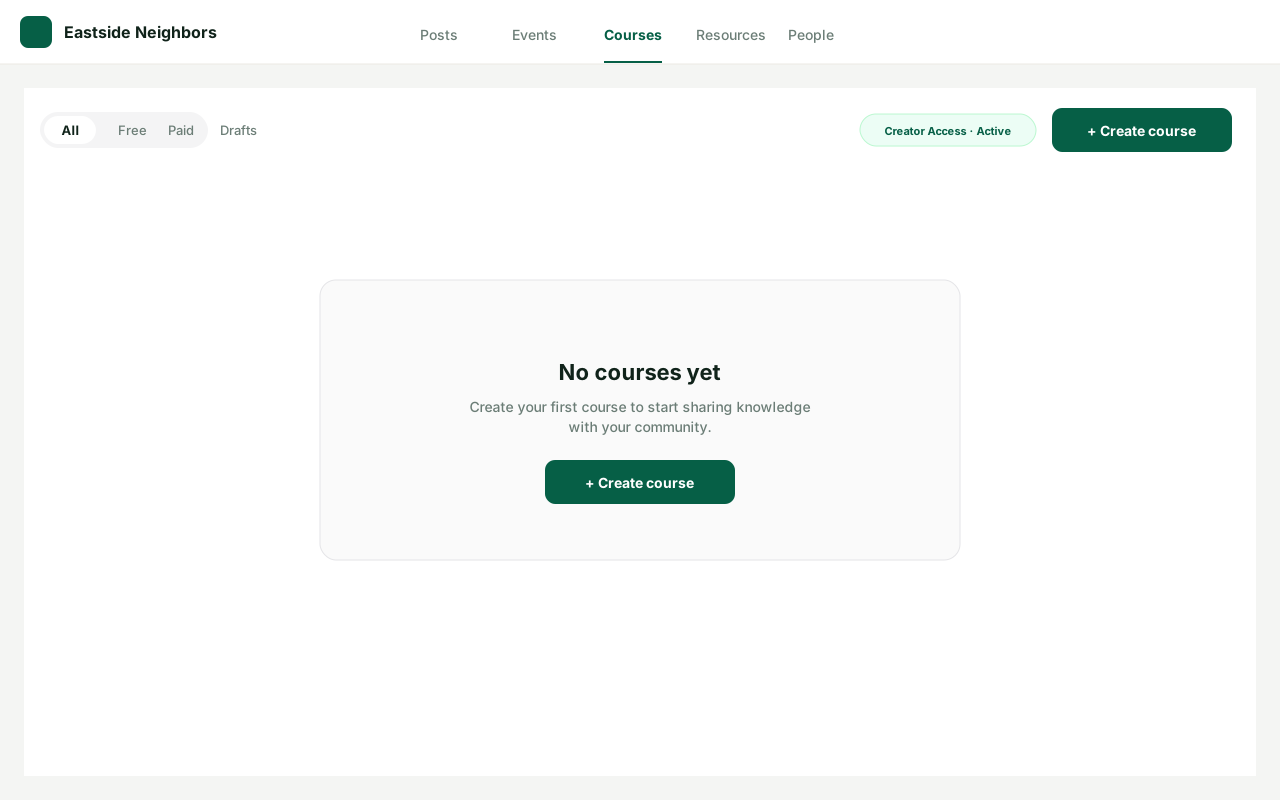
On the community, open the Courses tab. With Creator Access · Active, click Create course (top right, or in the empty state).
This step is a labeled walkthrough of the current product, not a live screenshot.
Done when: The course has at least one saved lesson and you have published it (or saved it as a draft).
Create a community course
Overview
With Creator Access, create a course in three steps: Basics, Lessons, then Price & publish. Save lesson stays pinned while you add or edit a lesson.
Where to find it
Open the community → Courses. Creator Access must be active.
How it works
- Click Create course.
- On Basics, add a title and what people will learn, then Continue to lessons.
- Add a lesson from Upload, Paste link, Write, or From resources.
- Click Save lesson in the footer (the same button is used when you edit a lesson).
- Continue to price, choose Free, Paid, or membership, set who can find it, then Publish course or Save draft.
If something does not look right
- Confirm the signed-in profile and current workspace.
- Capture the page address and the exact message you see.
- Ask GoodAction Support if the control is still missing.