
Upload a community resource
Open the community resources area, choose the appropriate file, image, video or link option, and complete the required details.
Watch it step by step
Click the highlighted area to move through the task, or watch the video when one is available. Newer flows may use a labeled walkthrough instead of a live photo.
Step 1 of 12
1. Write a post
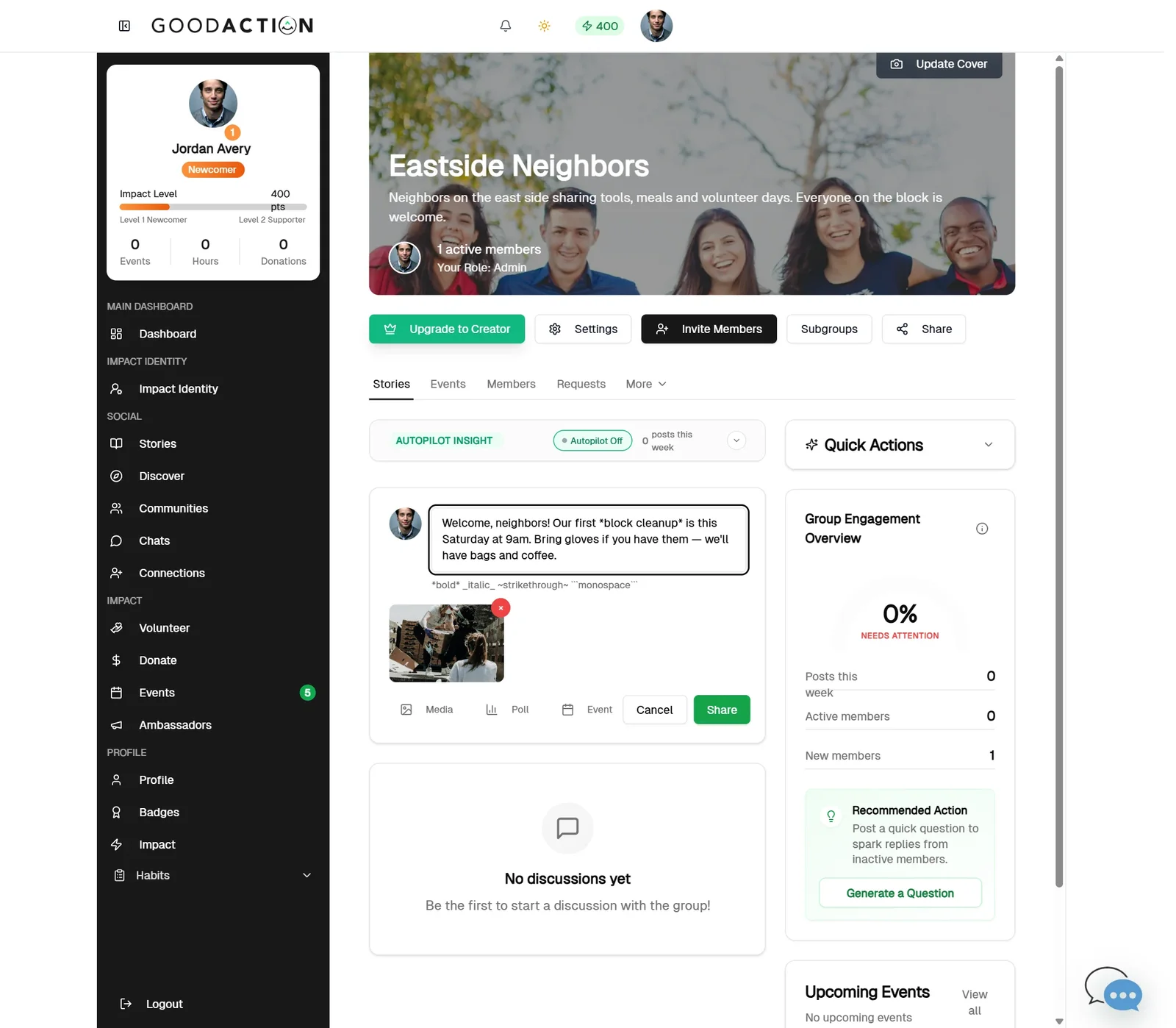
Click the composer, write your post, add media, then click Share.
Done when: Your post, poll, event and resource are live for members.
Upload a community resource
Overview
Open the community resources area, choose the appropriate file, image, video or link option, and complete the required details.
Where to find it
Open Social profile > Communities, select the community, and use the relevant Feed, Members, Events, Resources, Courses, Blog, Premium or Settings area. To create a community, choose Create Community from the Communities area.
How it works
- Open the community and select Resources.
- Confirm you have the community permission and active Creator Access required to create resources.
- Choose the supported resource type: file, image, video or link, and select a folder when appropriate.
- Enter the required title and details, upload or link the resource, and wait for the success state before leaving.
Important details
Community visibility, membership permission, owner permission and Creator Access are separate checks. A person may be able to view a resource without being allowed to create one. Paid membership does not by itself grant creator tools.
If something does not look right
- Confirm the signed-in profile and current workspace shown in the page header.
- Capture the page address, time and exact visible error.
- Do not include passwords, API keys, bank details or full card data.
- Ask GoodAction Support when the expected control remains unavailable or the saved result differs from this article.