
Invite organization team members
Invite teammates from organization settings and assign only the responsibilities they need.
Watch it step by step
Click the highlighted area to move through the task, or watch the video when one is available. Newer flows may use a labeled walkthrough instead of a live photo.
Step 1 of 2
1. Invite a team member
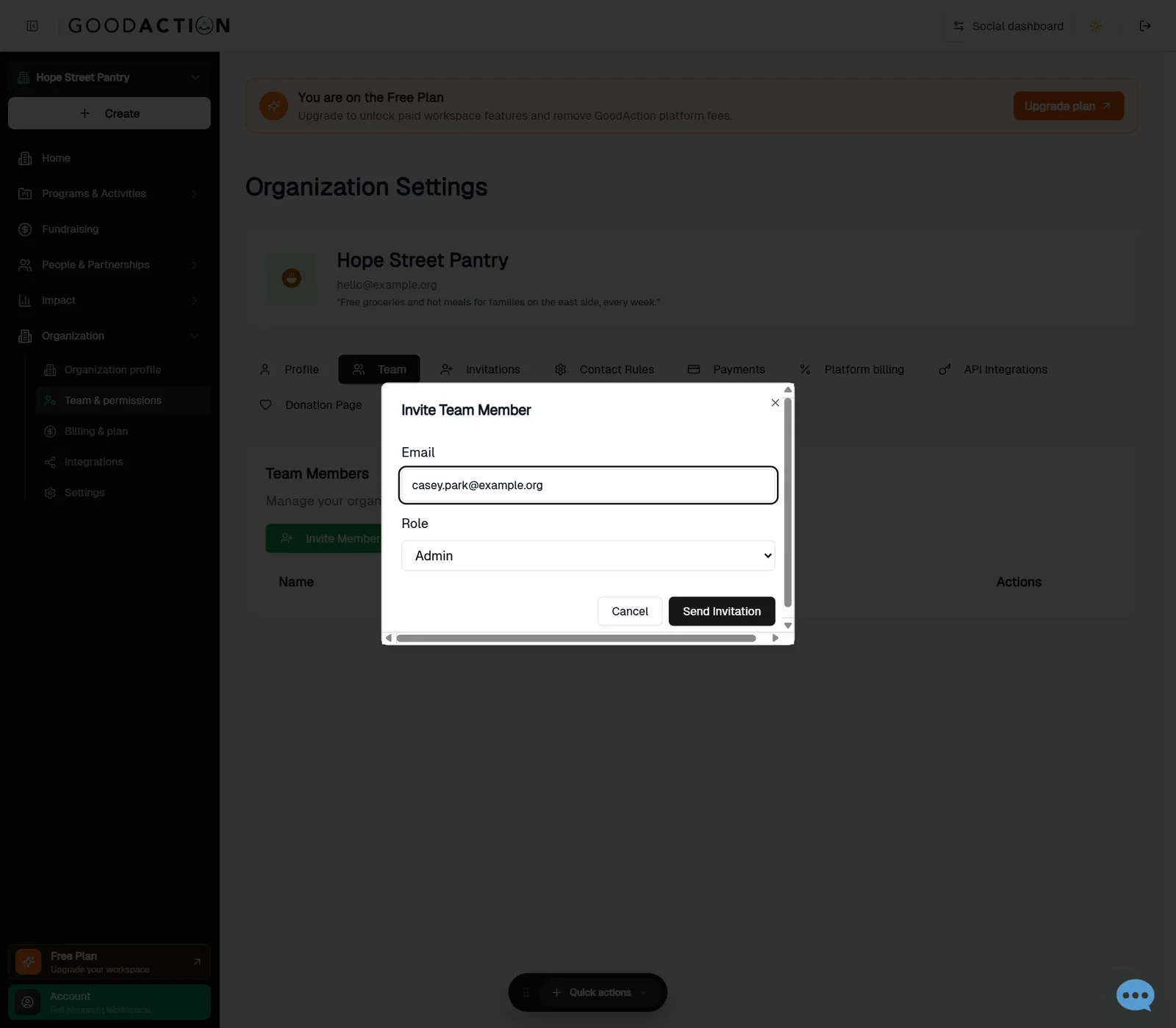
Open Organization → Team & permissions, click Invite Member, enter the email, pick a role and Send Invitation.
Done when: The invitation shows under Settings → Invitations until it's accepted (it expires after 7 days).
Invite organization team members
Overview
Invite teammates from organization settings and assign only the responsibilities they need.
Where to find it
Open the nonprofit workspace. Organization profile, Team, Invitations, Payments, Platform billing, API Integrations, Donation Page and Receipt Templates are available from Organization > Settings when your organization role permits them.
How it works
- Open Organization Settings and select Team.
- Select Invite Member and enter the teammate information requested by the invitation form.
- Choose the organization role that matches the person's work.
- Send the invitation and use Invitations to monitor, resend or cancel it when those controls are available.
Important details
Controls are shown according to the selected workspace, role, plan and record state. If a control is missing, confirm those four conditions before treating it as a platform fault.
If something does not look right
- Confirm the signed-in profile and current workspace shown in the page header.
- Capture the page address, time and exact visible error.
- Do not include passwords, API keys, bank details or full card data.
- Ask GoodAction Support when the expected control remains unavailable or the saved result differs from this article.