
Create a nonprofit program
Create a program to organize long-running service delivery, outcomes and related activities in the nonprofit workspace.
Watch it step by step
Click the highlighted area to move through the task, or watch the video when one is available. Newer flows may use a labeled walkthrough instead of a live photo.
Step 1 of 4
1. Open Programs
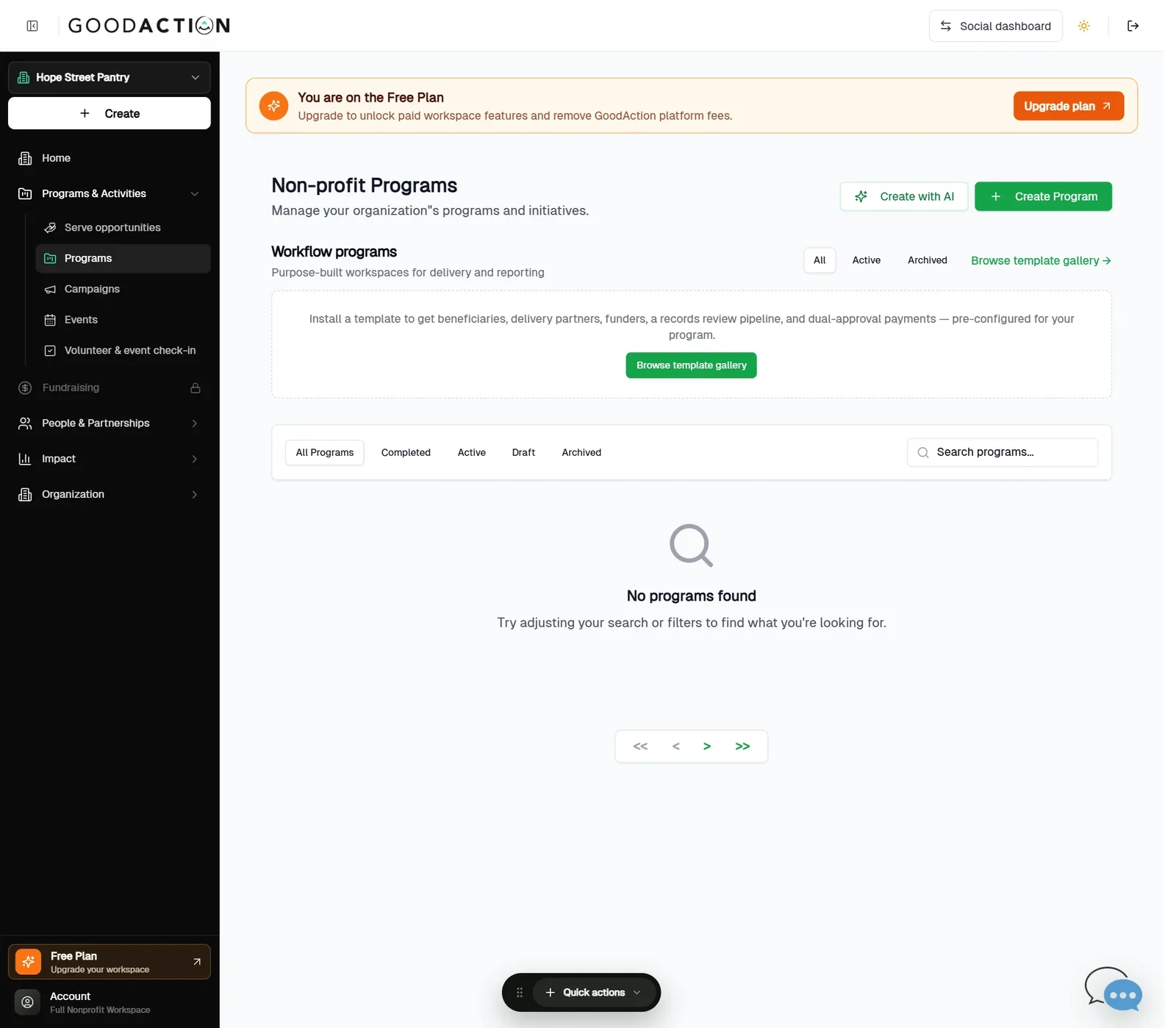
Open Programs & Activities → Programs and click Create Program.
Done when: The program card shows under Programs, ready for events, volunteers and campaigns to link to it.
Create a nonprofit program
Overview
Create a program to organize long-running service delivery, outcomes and related activities in the nonprofit workspace.
Where to find it
Open Nonprofit workspace > Programs & Activities > Programs. Select a program for details, or select a program instance for beneficiaries, cohorts, inventory, distribution logs, money, funders, institutions, records and settings.
How it works
- Open Programs and select New program.
- Enter the required title, description, location and start date; add an end date only when the program is not ongoing.
- Select up to the displayed category limit and add the optional audience, budget, goals, objectives, risks, resources and sustainability plan.
- Add the required program images within the displayed type, size and count limits.
- Choose Save as Draft or Create Program, then create an instance for a concrete delivery period when needed.
Important details
Program and program-instance records serve different purposes: the program defines the ongoing service model; an instance represents a delivery period and owns operational records such as beneficiaries, cohorts, inventory and distributions.
If something does not look right
- Confirm the signed-in profile and current workspace shown in the page header.
- Capture the page address, time and exact visible error.
- Do not include passwords, API keys, bank details or full card data.
- Ask GoodAction Support when the expected control remains unavailable or the saved result differs from this article.