
All step-by-step guides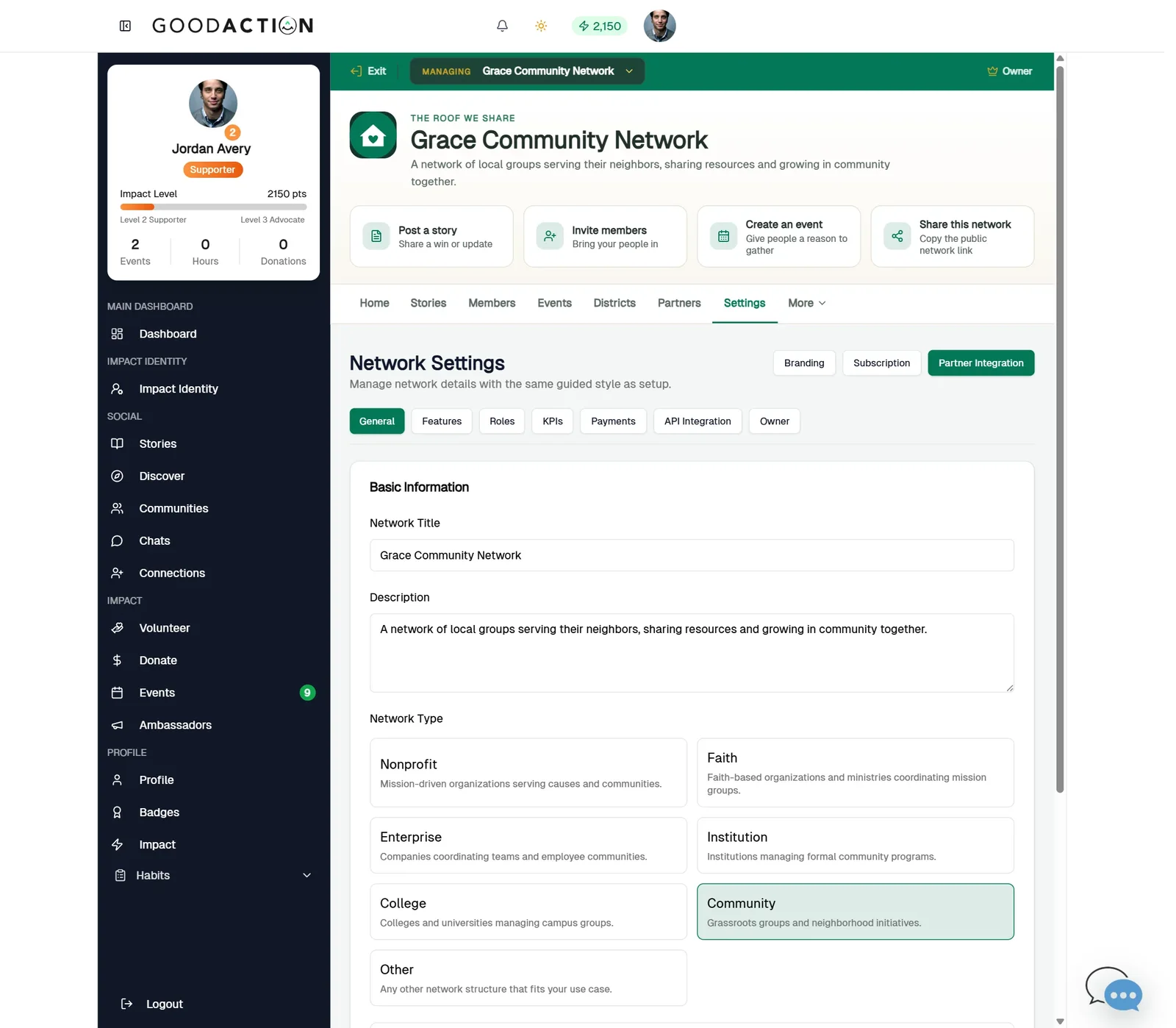
Network owner · Step-by-step guide
Change your network's logo and banner
Network owner or admin 1 min 5 steps
Before you start: A square logo (PNG, JPG or WebP, up to 6 MB) and a wide banner photo · Do this first: Create and brand a network
Step 1 of 5
1. Open Settings
goodaction.com/dashboards/social/networks?suiteId=…&tab=settings
In your network workspace, open Settings and click Branding.
Click the highlighted area, or use ← →
Good picture sizes
- Logo: square, at least 512×512.
- Banner: wide, about 1600×600. Keep faces away from the edges.
Good to know
- Drag a file onto the Logo or Banner box, or use Browse.
- The Live Portal Preview updates as you go. Nothing is public until you click Save Branding Settings.
- Check your Contact details are filled in before you save.
Was this helpful?