
All step-by-step guides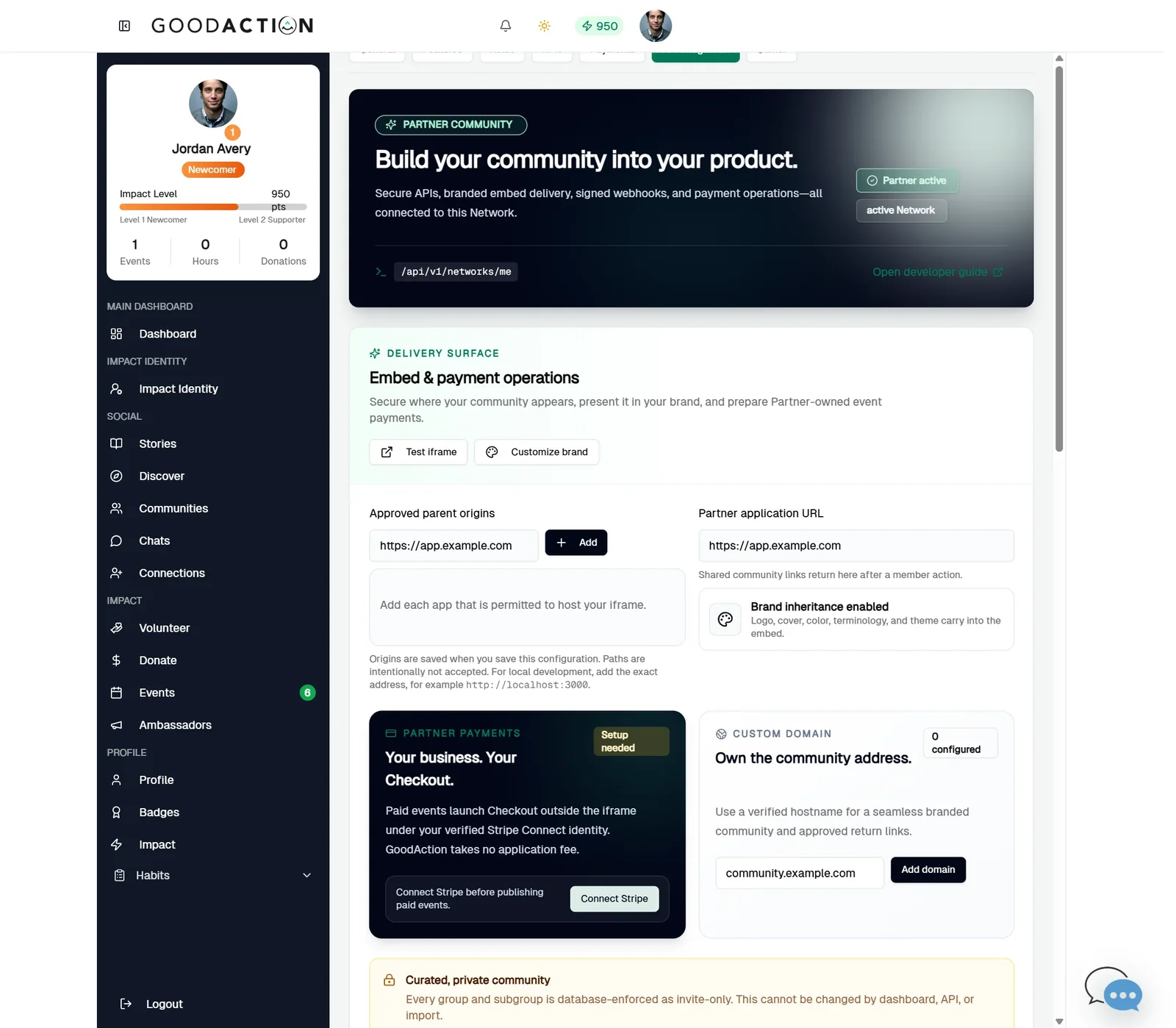
Network owner · Step-by-step guide
Connect your website with API keys and webhooks
Network owner or developer 2.5 min 6 steps
Before you start: A network (#22) and your app's address · Do this first: Create and brand a network
Step 1 of 6
1. Open API Integration
goodaction.com/dashboards/social/networks?suiteId=…&tab=settings§ion=integrations
Open Settings → API Integration. The Partner panel shows your API base (/api/v1/networks/me) and a link to the developer guide.
Click the highlighted area, or use ← →
Keys
- Test keys are read-only; live keys can make approved changes.
- The secret is shown once — store it on your server, never in the browser.
- Give each key only the permissions it needs; presets help.
Webhooks
- Use an https:// URL.
- Copy the signing secret when it's shown, and verify each delivery with it.
- Use Test to send a sample event; the Delivery log lets you replay failures.
Was this helpful?