
NetworksHow-to guide
Connect a website with API keys and webhooks
Create a network API key, allow your app to embed the community, and add a signed webhook endpoint.
API Verified Oct 6, 2026
Watch it step by step
Click the highlighted area to move through the task, or watch the video when one is available. Newer flows may use a labeled walkthrough instead of a live photo.
Network owner or developer 2.5 min 6 steps
Before you start: A network (#22) and your app's address · Do this first: Create and brand a network
Step 1 of 6
1. Open API Integration
goodaction.com/dashboards/social/networks?suiteId=…&tab=settings§ion=integrations
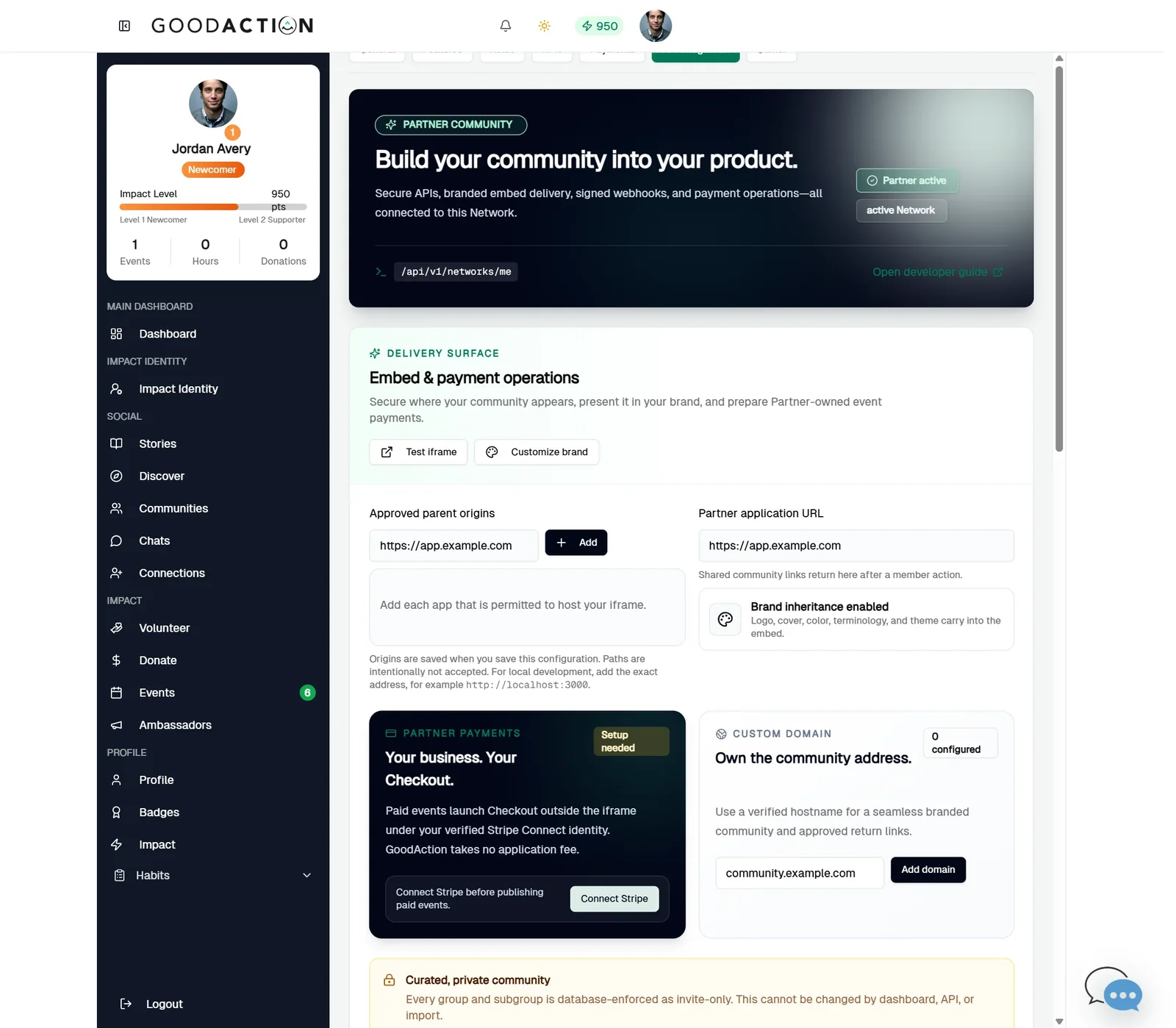
Open Settings → API Integration. The Partner panel shows your API base (/api/v1/networks/me) and a link to the developer guide.
Click the highlighted area, or use ← →
Done when: Your app can read network data with an API key, embed the community, and receive signed webhooks.
Connect a website with API keys and webhooks
Overview
Create a network API key, allow your app to embed the community, and add a signed webhook endpoint.
Where to find it
Open the network workspace → Settings → API Integration. Developer reference: /api/docs.
How it works
- Open Settings → API Integration.
- Add Approved parent origins and save embed configuration.
- Create a Test or Live key, copy the secret once, and store it on your server.
- Add a webhook https URL, copy the signing secret, and use Test to send a sample event.
If something does not look right
- Confirm the signed-in profile and current workspace.
- Capture the page address and the exact message you see.
- Ask GoodAction Support if the control is still missing.