
Check in volunteers and attendees
Use Volunteer & event check-in to locate the correct event and record arrival for registered participants.
Watch it step by step
Click the highlighted area to move through the task, or watch the video when one is available. Newer flows may use a labeled walkthrough instead of a live photo.
Step 1 of 2
1. Open check-in
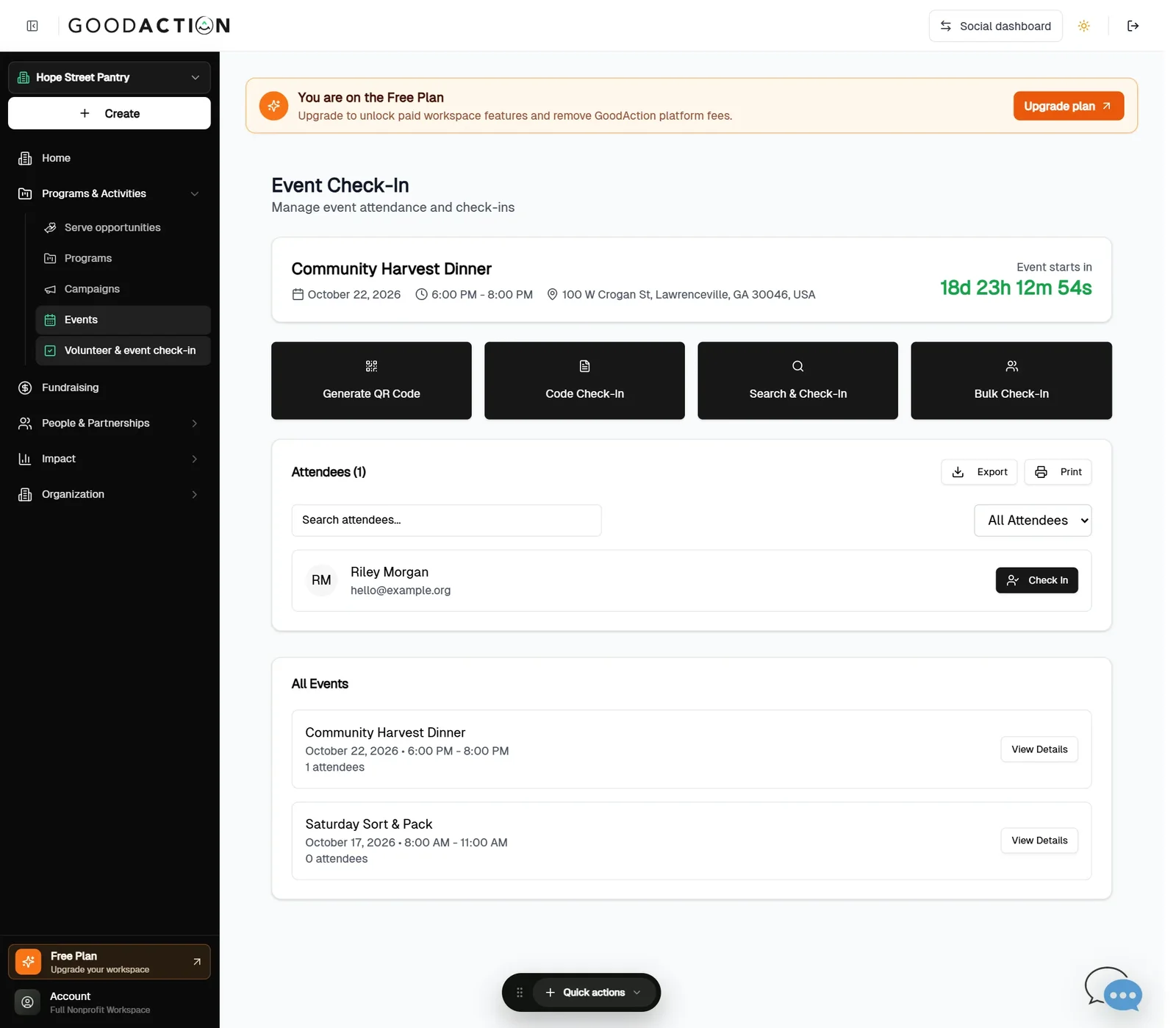
Open Programs & Activities → Volunteer & event check-in. Pick the event under All Events.
Done when: Each attendee shows “Checked in” with the time.
Check in volunteers and attendees
Overview
Use Volunteer & event check-in to locate the correct event and record arrival for registered participants.
Where to find it
Social hosts open Events > Create New Event and choose Personal or Group. Organization hosts open Nonprofit workspace > Programs & Activities > Events > Create Event. Company Serve admins do not create nonprofit events here; they add a partner’s published event from Enterprise > Serve > Opportunities.
How it works
- Open Volunteer & event check-in and select the correct event.
- Search for the registered attendee or volunteer.
- Verify identity using the organization's check-in policy.
- Record check-in once and resolve duplicate or missing registrations before creating an additional record.
Important details
Organization event types are Basic Event, Donation Event, Volunteer Event and Volunteer + Donation. Tickets belong to the Basic event workflow. Donation-capable events require the host's payment setup; volunteer events require valid dates, shifts, capacity and at least one role. Registration must close no later than the event ends.
If something does not look right
- Confirm the signed-in profile and current workspace shown in the page header.
- Capture the page address, time and exact visible error.
- Do not include passwords, API keys, bank details or full card data.
- Ask GoodAction Support when the expected control remains unavailable or the saved result differs from this article.