
Request impact verification
Use the available verification workflow with truthful supporting evidence and monitor the displayed review status.
Watch it step by step
Click the highlighted area to move through the task, or watch the video when one is available. Newer flows may use a labeled walkthrough instead of a live photo.
Step 1 of 2
1. Member requests verification
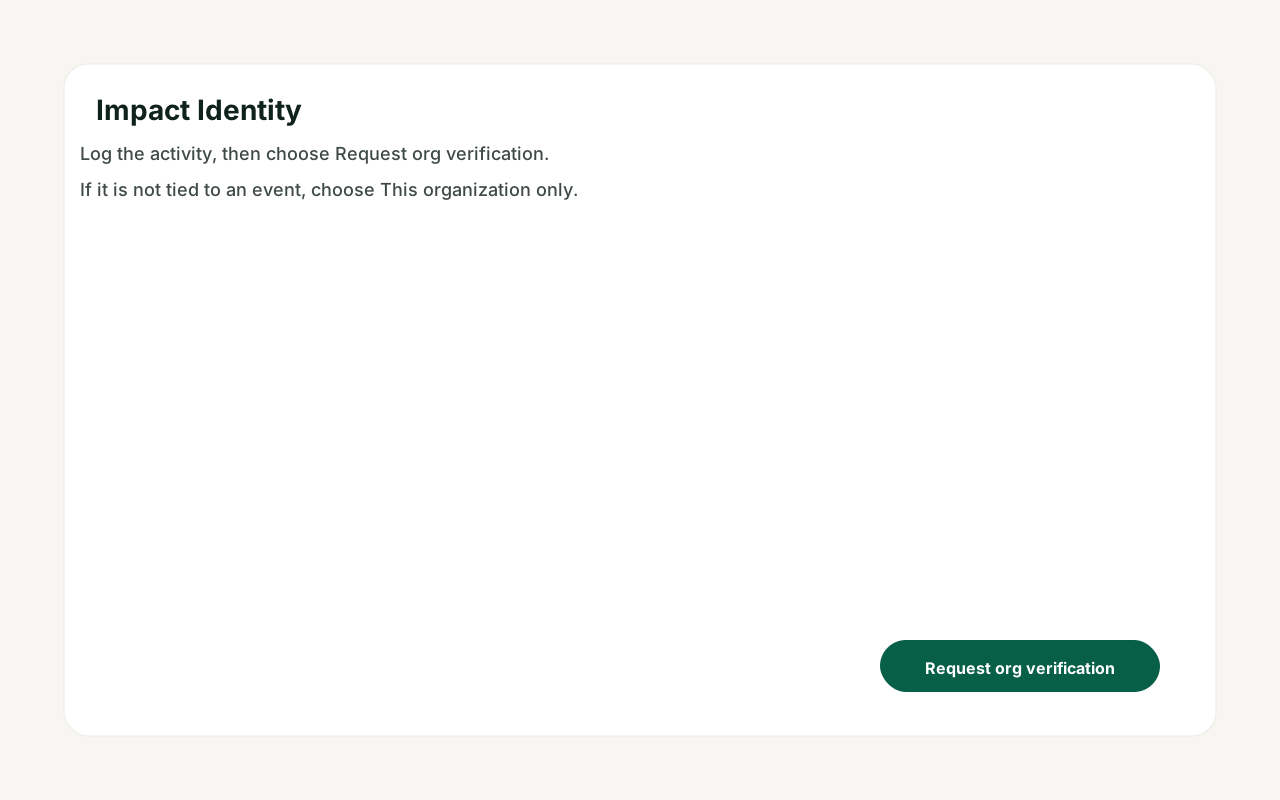
From Impact Identity the member logs the activity and chooses Request org verification.
This step is a labeled walkthrough of the current product, not a live screenshot.
Also shown in: Log impact and get it verified
Done when: Pending hours show as approved, or the member’s impact shows organization verification.
Request impact verification
Overview
Use the available verification workflow with truthful supporting evidence and monitor the displayed review status.
Where to find it
Open Nonprofit workspace > Impact and choose Impact analytics, Impact reports, Stories, Network stories or Impact verification.
How it works
- Choose the correct organization, reporting period and program or activity scope.
- Review the underlying records before interpreting or reporting a metric.
- Add the evidence or report information required by the selected workflow.
- Preview the result and verify privacy, status and audience before sharing.
Important details
Analytics summarize recorded platform data; verification and evidence determine what can be treated as verified impact. Review scope and privacy before sharing a report outside the organization.
If something does not look right
- Confirm the signed-in profile and current workspace shown in the page header.
- Capture the page address, time and exact visible error.
- Do not include passwords, API keys, bank details or full card data.
- Ask GoodAction Support when the expected control remains unavailable or the saved result differs from this article.