
Create a volunteer opportunity
Create a volunteer opportunity with a clear role, schedule, capacity and participation expectations.
Watch it step by step
Click the highlighted area to move through the task, or watch the video when one is available. Newer flows may use a labeled walkthrough instead of a live photo.
Step 1 of 7
1. Create a volunteer event
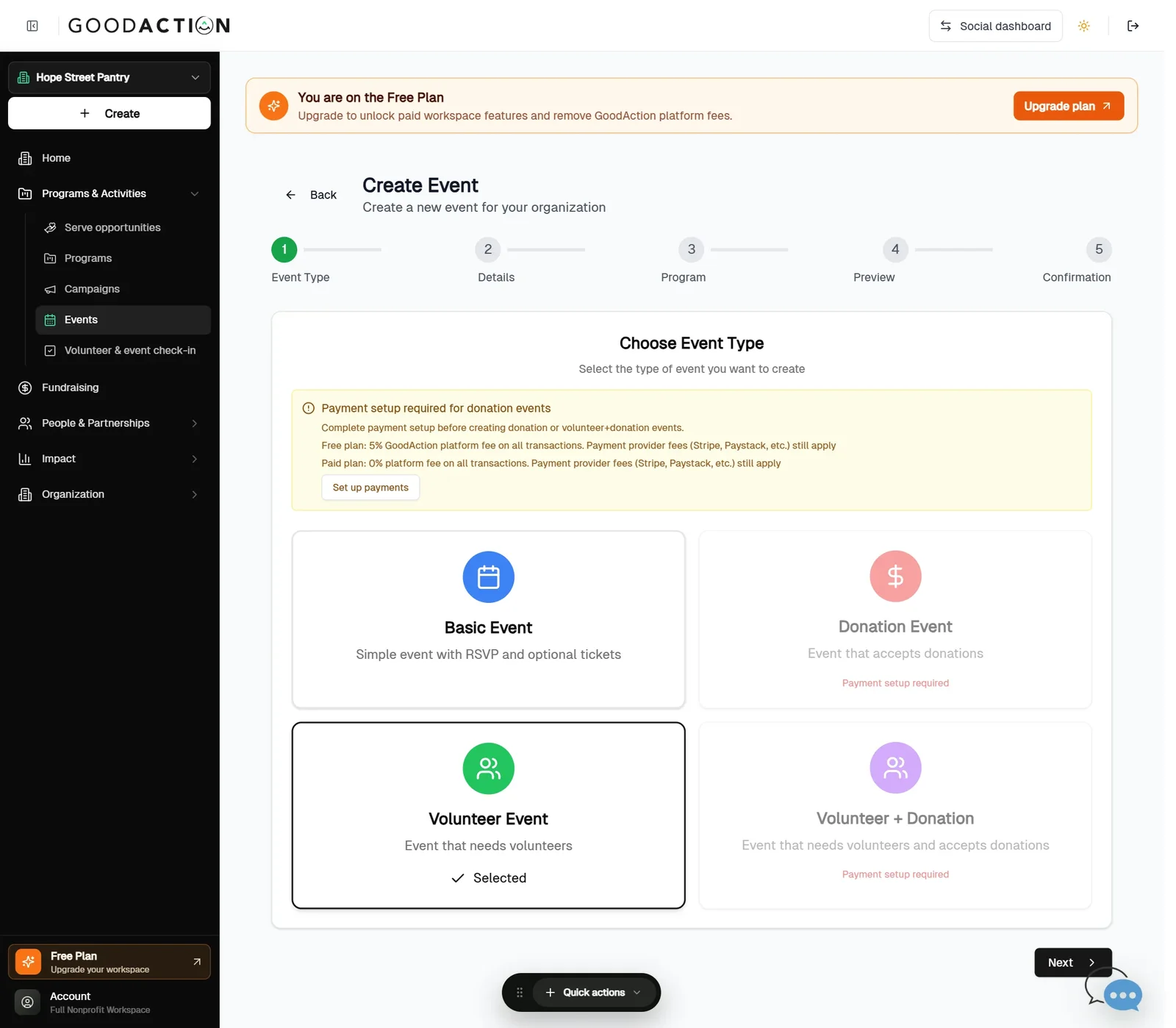
Open Events → Create Event and choose Volunteer Event.
Done when: The volunteer event is published. Volunteers pick a date and shift, and you see them under check-in.
Create a volunteer opportunity
Overview
Create a volunteer opportunity with a clear role, schedule, capacity and participation expectations.
Where to find it
Social users can open Volunteer to find opportunities. Organizations use Programs & Activities for opportunities and Volunteer & event check-in for attendance; volunteer management is also linked from the nonprofit home.
How it works
- Open the correct opportunity or volunteer record and verify its organization, role and dates.
- Complete the sign-up, assignment or hours action described in the overview.
- Provide only accurate participation information and avoid duplicate submissions.
- Check the resulting sign-up, approval or activity status.
Important details
Volunteer sign-up, event attendance and approved volunteer hours are related but distinct records. Select the correct opportunity and avoid estimating or duplicating hours.
If something does not look right
- Confirm the signed-in profile and current workspace shown in the page header.
- Capture the page address, time and exact visible error.
- Do not include passwords, API keys, bank details or full card data.
- Ask GoodAction Support when the expected control remains unavailable or the saved result differs from this article.