
Invite enterprise employees
Use People to invite employees and assign office, department or role details before they join Company Serve.
Watch it step by step
Click the highlighted area to move through the task, or watch the video when one is available. Newer flows may use a labeled walkthrough instead of a live photo.
Step 1 of 4
1. Open Enterprise Overview
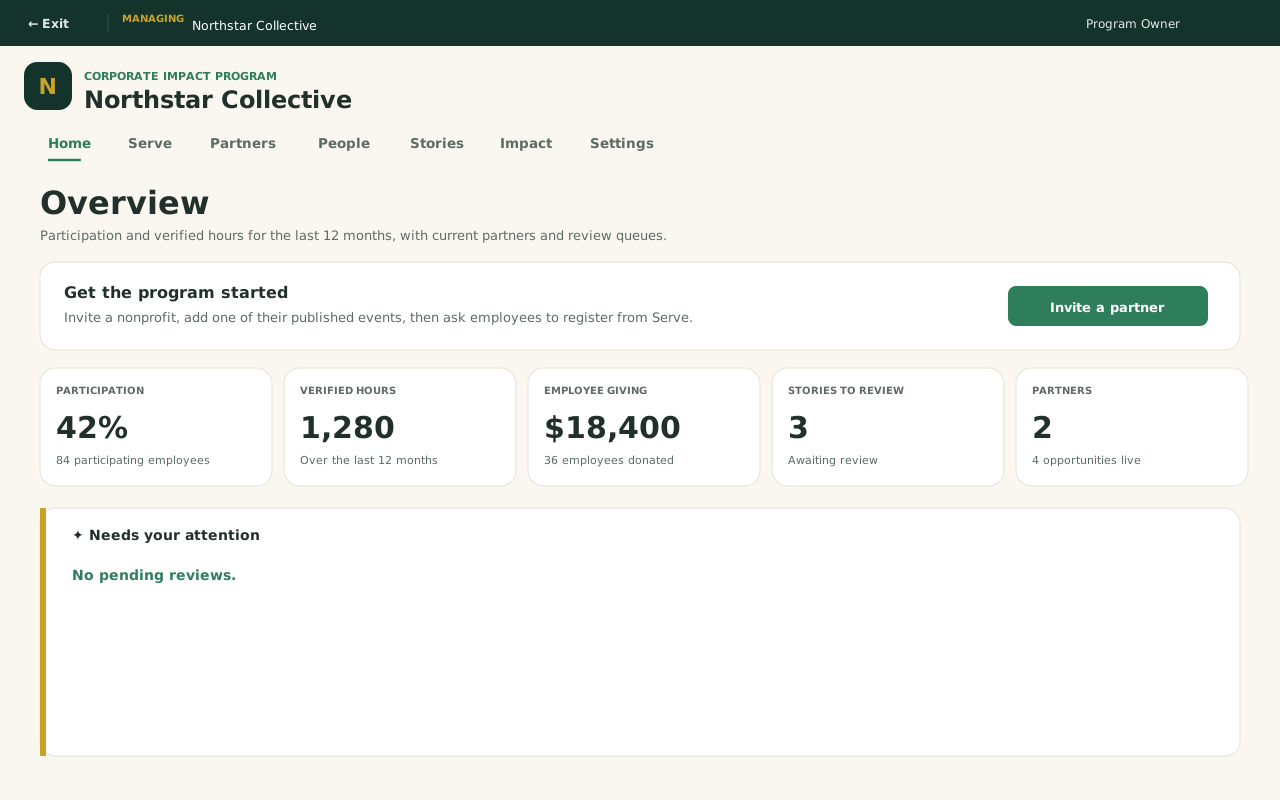
Switch Profile to the company. The CSR workspace opens on Overview: participation, hours, partners, and anything that needs review.
This step is a labeled walkthrough of the current product, not a live screenshot.
Done when: Employees are invited from People → Everyone, and you have chosen a company commitment (or added an event for employees) in Partners → Marketplace.
Invite enterprise employees
Overview
Use People to invite employees and assign office, department or role details before they join Company Serve.
Where to find it
Program admins open Enterprise. Employees who are not program admins open Company Serve. Do not use the Nonprofit Dashboard for these tasks.
How it works
- Open Enterprise > People > People & roles.
- Invite the employee and complete the requested name and email fields.
- Assign office, department or role details when those fields are shown.
- Send the invitation once, then use People to confirm they can reach Company Serve.
Important details
Enterprise is the company Serve program. Partners are invited nonprofits. Employees register from Company Serve. Do not use nonprofit fundraising, Contacts CRM or organization billing screens as the enterprise how-to.
If something does not look right
- Confirm the signed-in profile and current workspace shown in the page header.
- Capture the page address, time and exact visible error.
- Do not include passwords, API keys, bank details or full card data.
- Ask GoodAction Support when the expected control remains unavailable or the saved result differs from this article.