
Create communities in a network
Create or connect communities within the network according to its intended structure and delegated permissions.
Watch it step by step
Click the highlighted area to move through the task, or watch the video when one is available. Newer flows may use a labeled walkthrough instead of a live photo.
Step 1 of 17
1. Launch a network
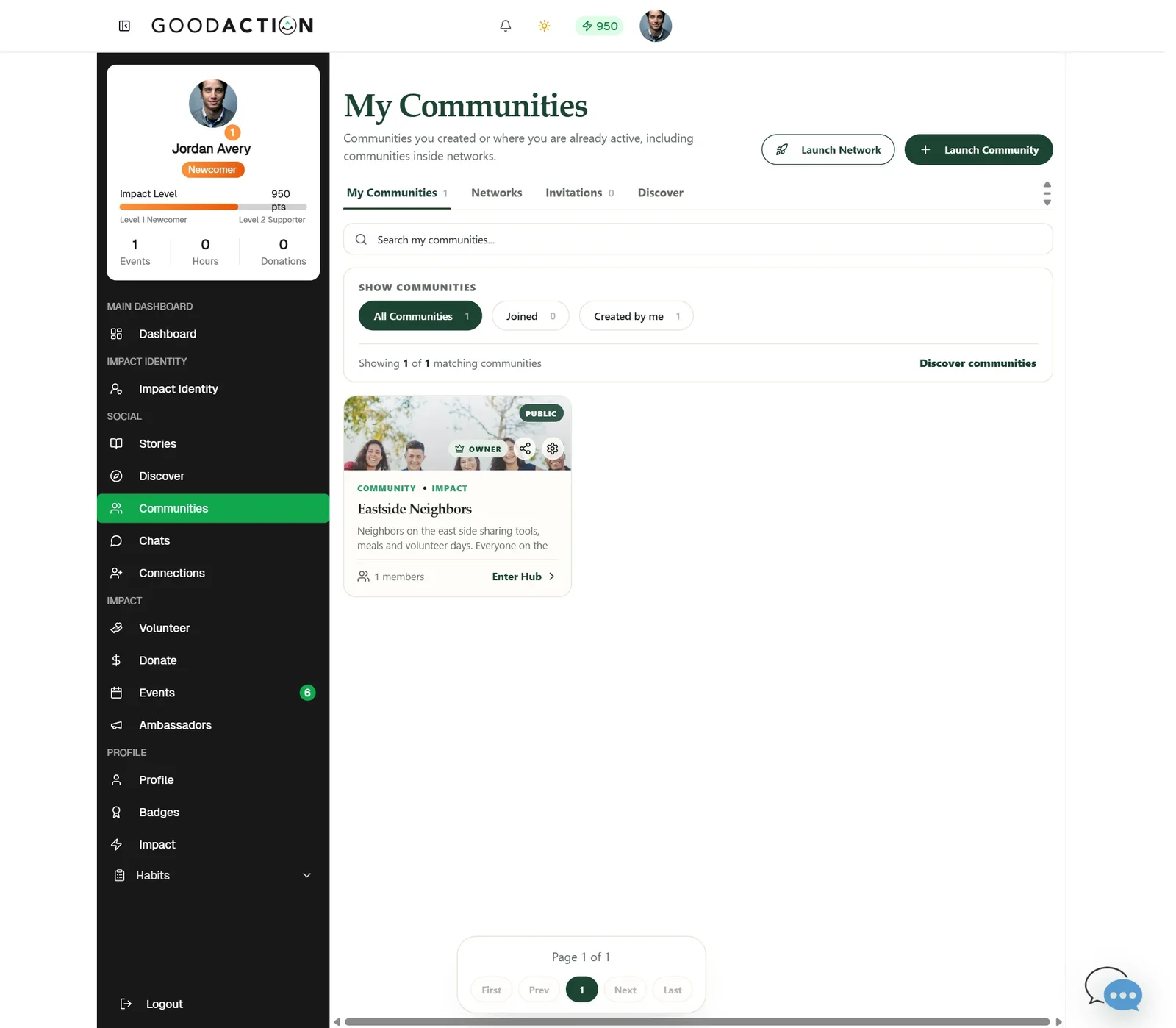
Open Communities and click Launch Network.
Done when: Your network workspace opens with a launch checklist, and your public portal is live at goodaction.com/o/your-network.
Create communities in a network
Overview
Create or connect communities within the network according to its intended structure and delegated permissions.
Where to find it
Open Social profile > Communities and use the Networks area. Network creation starts in Create your Network, which guides you through Choose plan, Configure and Confirm.
How it works
- Open the intended Network and confirm its current plan and managed-community limit.
- Select the network community, member, invitation or event described in the overview.
- Review the role and target before saving or sending anything.
- Verify the network activity or invitation status after the operation completes.
Important details
A Network brings several related communities under one brand, dashboard and plan. Current prices, group limits and billing intervals are shown at checkout, so review them there before you pay.
If something does not look right
- Confirm the signed-in profile and current workspace shown in the page header.
- Capture the page address, time and exact visible error.
- Do not include passwords, API keys, bank details or full card data.
- Ask GoodAction Support when the expected control remains unavailable or the saved result differs from this article.