
Connect a payment account
Follow the supported payment connection flow for the selected organization, community or event host before accepting payments.
Watch it step by step
Click the highlighted area to move through the task, or watch the video when one is available. Newer flows may use a labeled walkthrough instead of a live photo.
Step 1 of 3
1. Open Set up payments
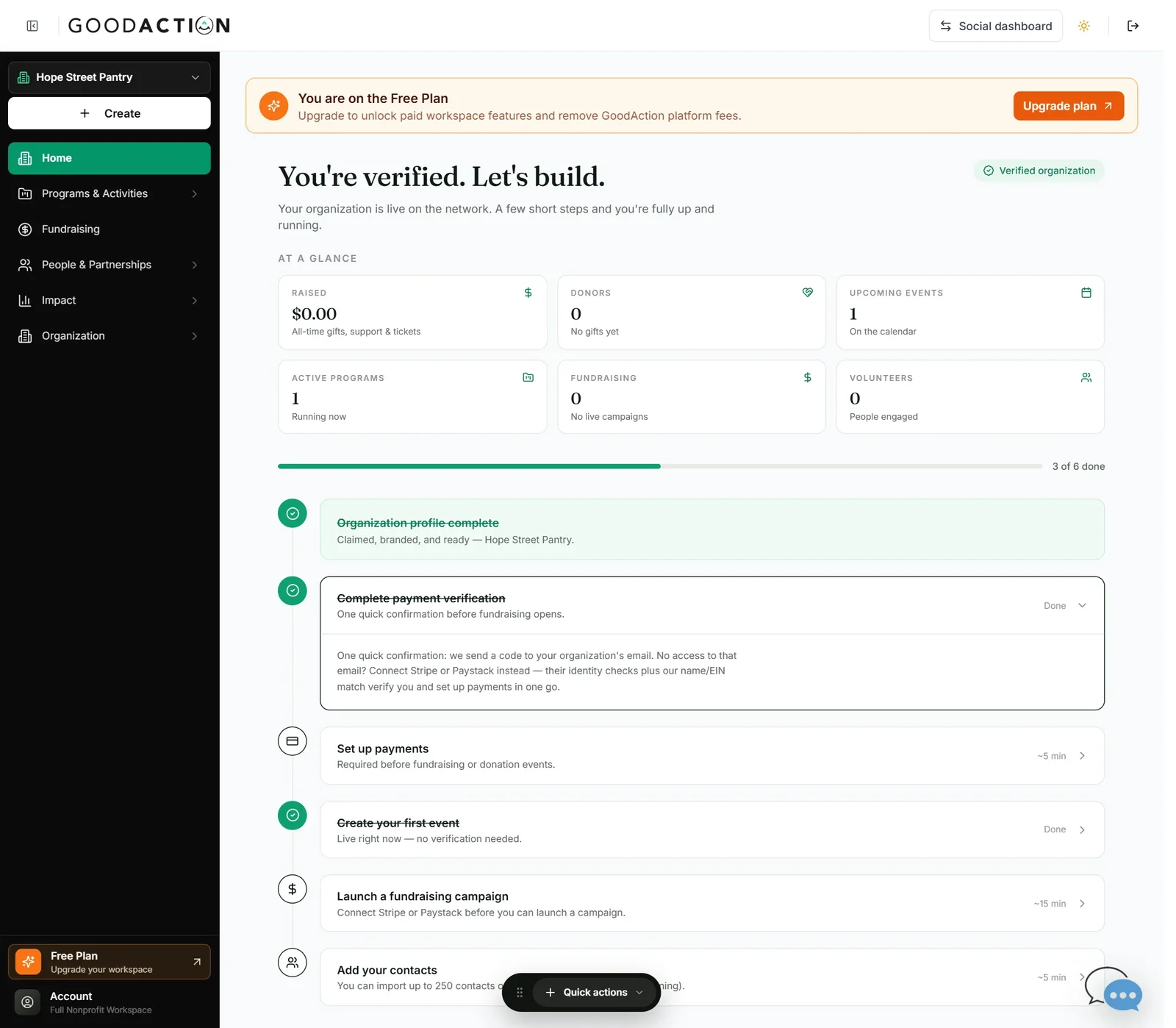
On Home, open Set up payments in the checklist.
Done when: Home shows “Verified organization” and Set up payments shows Stripe Active, details complete and payouts enabled.
Connect a payment account
Overview
Follow the supported payment connection flow for the selected organization, community or event host before accepting payments.
Where to find it
For an organization, open Organization > Settings > Payments. For a community or personal event, open the payment or monetization settings belonging to that host.
How it works
- Open Payments and confirm the preferred transaction currency shown for the organization country.
- Connect Stripe or PayPal through the displayed provider flow; never paste provider credentials into GoodAction chat.
- Return to Payments and verify the visible account status, details-submitted state and payout readiness.
- Before announcing paid tickets or donations, check that Payments shows the account as ready for payouts.
Important details
The Payments screen reports provider readiness such as account status, details submitted and payouts. Never send bank details, card data, provider secrets or temporary credentials in support chat. Disconnecting an account can interrupt checkout and should be intentional.
If something does not look right
- Confirm the signed-in profile and current workspace shown in the page header.
- Capture the page address, time and exact visible error.
- Do not include passwords, API keys, bank details or full card data.
- Ask GoodAction Support when the expected control remains unavailable or the saved result differs from this article.